
Golf bands, like those from Garmin and Arccos, use Bluetooth and GPS to track your game and send data to apps for analysis. These devices log shot locations, categorize strokes, and provide insights such as club distances, accuracy, and Strokes Gained analytics. Pairing is straightforward: enable Bluetooth, use the app’s pairing feature, and ensure both devices are close. Apps like Garmin Golf offer features like automatic scorecard uploads, leaderboards, and course data for over 40,000 courses. Troubleshooting common sync issues involves checking battery levels, restarting devices, and updating software. By analyzing stats like missed fairways or strokes lost, golfers can identify weaknesses and improve their game.
Garmin Golf App Guide: How to Sync, Track & Master Your Game (Full Integration Tutorial)
sbb-itb-bcd8bdd
Popular Golf Bands and Their Apps
Garmin offers a variety of devices that work seamlessly with the Garmin Golf app, catering to different golfer preferences. For instance, the Approach X40 and Approach X10 take distinct approaches to syncing. The X40 connects automatically via Bluetooth, while the X10 requires manual syncing through Garmin Express on a computer.
The Approach X40 stands out with its 1-inch sunlight-readable touchscreen and AutoShot technology, which automatically measures and records shot distances for post-round analysis. It includes data for over 40,000 courses and features 24/7 heart rate monitoring using Garmin Elevate technology. This device also tracks daily activities like steps, calories, and sleep. At launch, it was priced at $249.99.
In contrast, the Approach X10 is a budget-friendly option that provides essential features like score tracking and course data. However, it lacks Bluetooth syncing, requiring users to connect it manually to a computer via Garmin Express.
The Garmin Golf app also supports a wide range of other devices, enhancing the overall golf tracking experience. This includes the Approach S-series watches (from the S2 to the S70), vívoactive fitness watches, and premium multisport watches like the fēnix and MARQ series. Newer watches, such as the Approach S40, S60, and S70, allow for real-time scorecard uploads directly through the app, whereas older models need to sync via Garmin Connect after the round.
With over 1 million downloads on the Google Play Store, the Garmin Golf app offers access to weekly leaderboards for more than 41,000 courses globally. Knowing how each device syncs ensures you can easily pair your band and make the most of its features.
What You Need Before Syncing
Before you pair your golf band, make sure everything is set up properly. First, check that your smartphone meets the minimum operating system requirements. For instance, Arccos Link requires at least iOS 14.1 or Android Pie 9.0. Your phone also needs Bluetooth, a gyroscope, and an accelerometer to ensure accurate tracking.
Next, turn on Bluetooth on both your phone and the golf band, and keep them close – within 33 feet (10 meters) – to maintain a stable connection.
You’ll also need an active account with the manufacturer. For example, Garmin devices often require you to create a Garmin Connect account during setup. Apps like Zepp Golf and 18Birdies will ask you to register with an email and password. If you’re using an Apple Watch with 18Birdies, make sure to log in on the phone app before attempting to pair.
When pairing, always use the band’s companion app. Look for options like “Add Device” or “Pair” in the app. If you’ve already paired the device through your phone’s system settings, unpair it before starting the process in the app.
Lastly, update both your phone’s operating system and the app itself to the latest versions. This ensures you receive updates automatically and avoid any compatibility issues. Keep in mind that older devices, like the first-generation Arccos Link sensors or Apple Watch Series 1 and 2 (which lack GPS), may not support syncing. Once you’ve completed these steps, you’re ready to sync your band through the app.
How to Sync Your Golf Band with an App
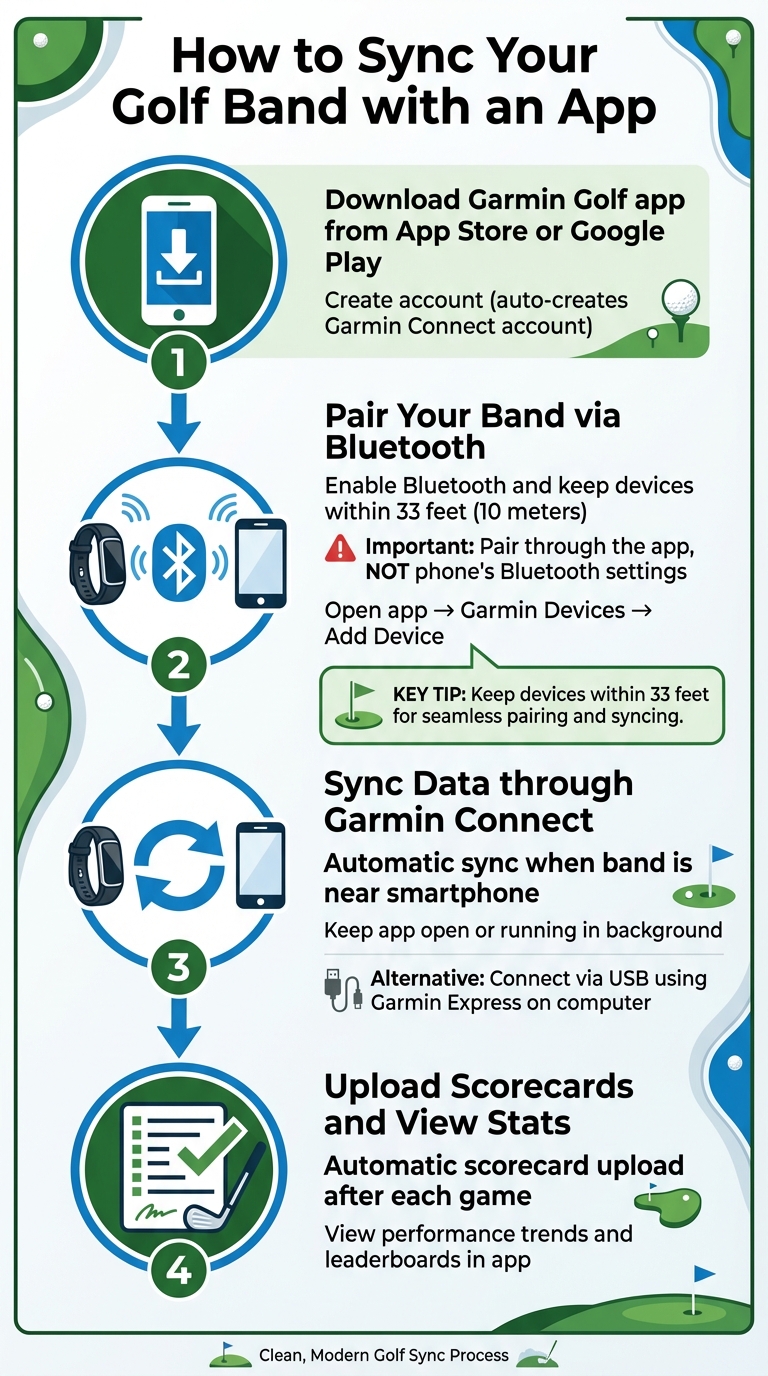
How to Sync Your Golf Band with App in 4 Steps
Download and Install the App
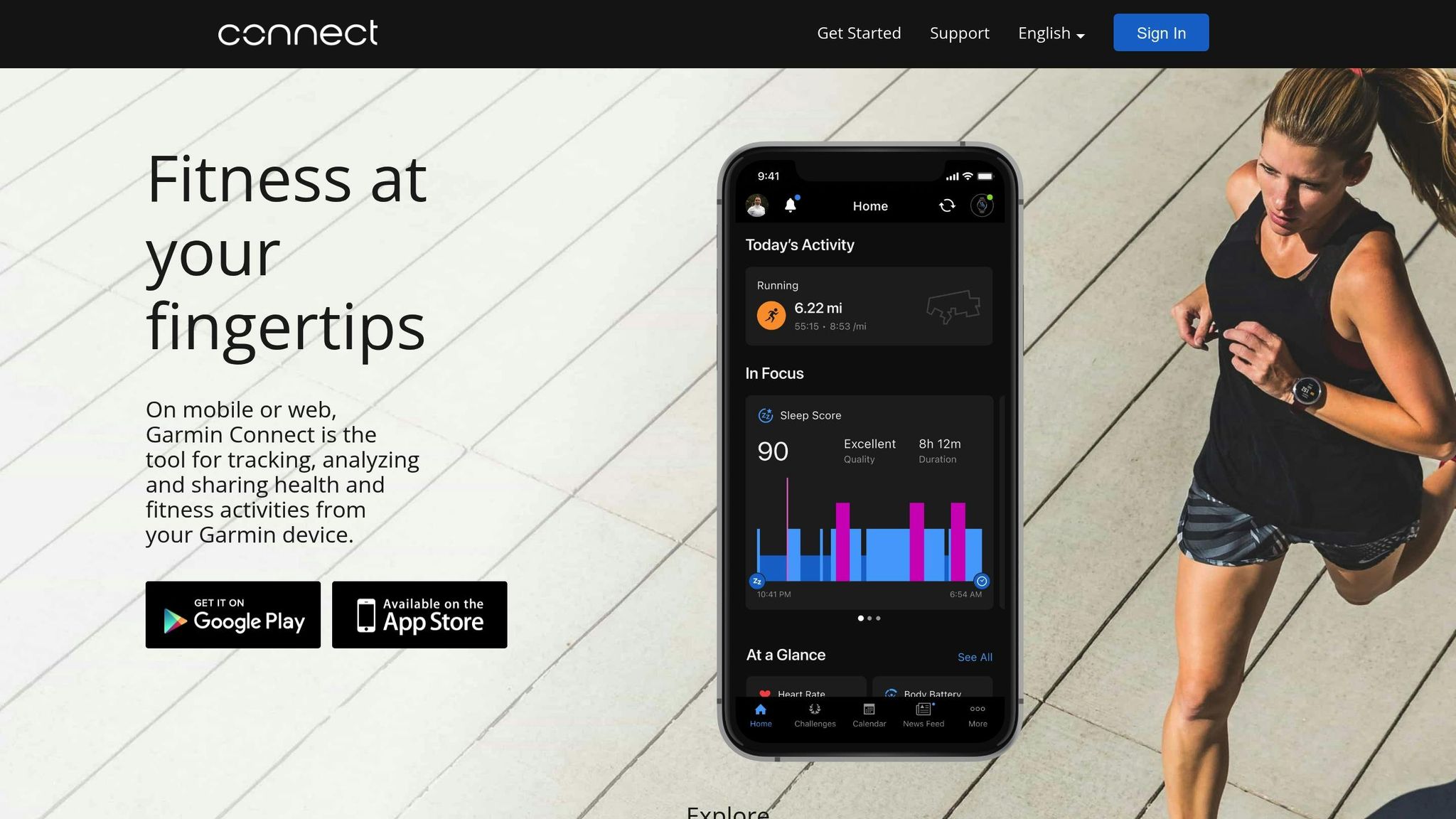
To get started, download the Garmin Golf app from either the Apple App Store or Google Play Store. Simply search for “Garmin Golf”, install the app, and open it. If you don’t already have an account, you’ll need to create one. During this process, a Garmin Connect account will also be set up automatically to store all your fitness and wellness data [6, 30].
Pair Your Band via Bluetooth
One common mistake is pairing your band through your phone’s default Bluetooth settings – avoid doing this. Instead, pair it directly within the Garmin Golf app [27, 28, 29].
Here’s how to pair your band:
- Make sure Bluetooth is enabled on your phone and keep the phone and band within 33 feet (10 meters) of each other [14, 27, 29].
- Check if your band is in pairing mode. Most devices enter this mode automatically when powered on for the first time. If not, refer to your device manual to activate pairing mode manually.
- Open the Garmin Golf app, navigate to the menu, and select “Garmin Devices” or “Profile > My Devices.” Tap “Add Device” and follow the on-screen instructions [27, 28, 29].
Once paired, you’re all set to sync your data through Garmin Connect.
Sync Data through Garmin Connect
After pairing, your golf band will automatically sync data whenever it’s near your smartphone [6, 14, 17]. To ensure smooth syncing, keep the Garmin Golf or Garmin Connect app open or running in the background [14, 17]. The app will also handle software updates and course data downloads for your device [5, 6].
Prefer using a computer? No problem. Connect your band via USB and use Garmin Express (available at Garmin.com/express) to sync your data and manage updates.
Once synced, you’ll be able to dive into your performance stats.
Upload Scorecards and View Stats
After each game, your scorecard and stats will upload automatically. Open the app to check out your performance trends and compare yourself on the leaderboards. The Garmin Golf app is tailored to golf-specific metrics like scorecards and stats, while the Garmin Connect app offers a broader view – tracking steps, heart rate, and calories burned [6, 30].
Fixing Common Sync Problems
Syncing your golf band can sometimes hit a snag, but most issues can be resolved with a few straightforward steps. If the standard syncing process doesn’t work, here are some quick troubleshooting tips to get things back on track.

Connection Failures
If your golf band isn’t connecting, start with the basics. Keep both devices within 33 feet of each other and check the band’s battery level. As Spencer Lanoue, Founder of Caddie AI, points out:
“A low battery is the number one reason for pairing failures”.
If your band was previously paired but won’t reconnect, remove it from your phone’s Bluetooth settings and the golf app. Restart both devices, toggle Bluetooth off and back on, and then pair directly through the app instead of your phone’s Bluetooth menu. Another helpful tip is to force-close the app and relaunch it.
For Garmin devices, you can manually enable pairing mode by holding the physical button or navigating to Settings > Connectivity > Phone > Pair Phone. If you’re in a crowded area, move away from other Bluetooth devices to minimize interference.
Once the connection is re-established, but data still won’t upload, follow the next steps.
Data Not Uploading
If your scorecard or stats aren’t uploading, first check that your phone has an active internet connection and that the app is allowed to run in the background. Also, make sure the golf band is close to your phone during the sync process.
Next, review your app permissions. On both iOS and Android, ensure “Location” is set to “While using” and “Background App Refresh” is enabled. If the problem persists, clear the app’s cache. If all else fails, uninstall and reinstall the app to clear any lingering data issues.
App Compatibility Problems
To avoid future syncing headaches, keep both your app and band firmware up-to-date. Regular updates can prevent potential compatibility glitches.
If the app still malfunctions, you can connect your band via USB and update the firmware using Garmin Express. For users who recently switched phones, make sure to remove the band from the old phone’s Bluetooth settings and app before pairing it with the new device. A clean reinstall of the app after restarting your phone can also resolve software conflicts that might mimic compatibility issues.
Using Your Synced Data to Improve Your Game
Once you’ve sorted out any syncing issues, it’s time to let your data work for you. By focusing on the right metrics, you can pinpoint performance gaps and make meaningful improvements to your game. The key is understanding which areas need the most attention and dedicating your practice time to those.
Start with Strokes Gained Analytics, which breaks your performance down into four key areas: Off-the-Tee, Approach, Short Game, and Putting.
“Strokes Gained is arguably the most powerful game-improvement metric in golf, and having a basic understanding of it will completely transform how you practice”.
For example, if your data shows you’re losing 5.2 strokes on approach shots compared to just 0.5 strokes on putting, it’s clear that your iron play needs more focus. Similarly, if 90% of your missed fairways are going right, it’s likely a consistent swing flaw rather than random mistakes. Tracking Greens in Regulation (GIR) misses can also be revealing – if you’re consistently falling short, it might mean you’re overestimating your club distances. On average, new Arccos users lower their handicap by 5.71 strokes in their first year by using these kinds of data-driven insights.
After each round, review your stats carefully. Adjust pin locations and terrain markers to ensure the AI has the most accurate information. Ryan Crysler, Senior Instructor at The Butch Harmon Floridian, highlights the importance of this step:
“One of the most important aspects of Arccos in my mind is the review process after the round… making sure that these stats are critically accurate because the strokes gained and data that Arccos tracks only gets better and is infinitely more valuable if the data is correct”.
If you’re looking for targeted drills based on your data, consider the Precision Putting Video Course or Maximum Distance Video Course, both available for $49.00 from How To Break 80. These courses are designed to address specific weaknesses revealed by your synced stats, helping you take your game to the next level.
Conclusion
Syncing your golf band with an app transforms raw data into actionable insights that can help lower your scores. Instead of relying on guesswork to identify weaknesses, you gain access to objective metrics that highlight where strokes are lost – whether it’s off the tee, on approach shots, or around the greens. Features like automatic shot detection and GPS tracking ensure every swing is captured and analyzed, giving you a clear picture of your performance.
Golfers who use these tools often see measurable improvements. The key lies in practicing smarter. Knowing your actual club distances – not just your best guesses – and identifying patterns, like consistently missing fairways to the right, allows you to focus your practice time on areas that truly matter. These data-driven insights make targeted training more effective and efficient.
Using this data effectively often requires the right instruction. If your stats reveal specific weaknesses – like losing strokes on approach shots or struggling with distance control – focused training resources can help address those gaps. For instance, the Precision Putting Video Course and Maximum Distance Video Course from How To Break 80 are designed to turn these insights into drills and techniques you can apply. By aligning your data with targeted training, you can convert numbers into meaningful improvements on the course.
FAQs
Why won’t my golf band pair with the app?
If your golf band isn’t pairing, it could be due to Bluetooth problems, an outdated app, or a sensor needing a reset. Here’s what to check:
- Make sure Bluetooth is turned on and your device is within 10 yards of the band.
- Verify that your app is updated to the latest version.
- If the issue involves a sensor, try resetting it by flipping it down for 15 seconds in a well-lit area.
Still no luck? Restart your phone and toggle Bluetooth off and on. If that doesn’t work, unpair the sensor and try pairing it again. For persistent issues, reach out to customer support for assistance.
Why isn’t my round data uploading after syncing?
If your round data isn’t uploading, it could be due to connectivity or pairing problems. Start by ensuring your device is connected to the app, you’re logged in, and everything is properly synced. If that doesn’t work, try these steps:
- Restart both your device and the app.
- Check your Wi-Fi or Bluetooth connection.
- Keep your device close to your phone during syncing.
- Log out of the app and log back in, or reconnect the device.
Still having trouble? Reach out to support for further assistance.

Do I need my phone with me during the round?
Using a GPS-enabled smartwatch in standalone mode means you can leave your phone behind during your game. The watch handles everything: tracking distances, holes, and scores all on its own. Once you’re done, it syncs with your phone seamlessly. This setup lets you concentrate on your game without the hassle of carrying additional gadgets.

Leave a Reply